



Remote Observing with CHARA
For remote observing, we are running a virtual machine on the CHARA server in Atlanta. The machine runs all the graphical user interfaces (GUIs) for the control software that is used in remote observing. These GUIs connect to their respective servers on Mt. Wilson using a process called SSH port forwarding (often referred to as SSH tunneling). This virtual machine also runs a VNC server so it can be accessed from anywhere.
Please note that our procedures have changed starting in the 2026A semester. You now need to initiate an SSH tunnel to connect to the remote observing machine.
Arranging Use of the Remote Observing Machine
Two weeks before your run, you will be sent an email reminding you about your upcoming run and providing you with links to the observing manuals, configuration setup request form, and this page. Three to five days before your observing time, you will be sent login credentials. First-time observers should seek assistance with their observing from experienced observers. Best results with the remote observing machine are achieved when using a good internet connection on a computer using multiple monitors. We do not recommend observing from a home network connection.
Prerequisites
In order to connect to the CHARA remote observing machine, you will need to have the following on your local machine.
- A VNC viewer - We recommend tigervnc (https://tigervnc.org/) because of the viewers we’ve tested, it runs the fastest.
- A way to initiate an SSH connection
- SSH is available by default on Linux, MacOS, and Windows 11 as well as later builds of Windows 10. It is also possible to set it up on older builds of Windows 10.
Connecting to the Remote Observing Machine
- Download and install a VNC viewer. We recommend tigervnc (https://tigervnc.org/) because of the viewers we’ve tested, it runs the fastest. Others do work, though.
- Initiate an SSH tunnel between your local machine and altair, the CHARA remote observing machine:
-
ssh -p 1031 -L 59XX:altair.chara-array.org:59XX <account>@altair.chara-array.org - The account name and port number (XX) will be provided for you before your run.
- This will open a connection to <account>@altair.chara-array.org. Do not close this window! Closing the window will end the SSH tunnel.
- This allows for a more secure connection than with VNC alone. Any communication software on your local machine makes with its port 59XX will be transmitted via the SSH tunnel to altair.
-
- If using tigervnc's viewer, run the vncviewer command. This should open a window that looks like this:
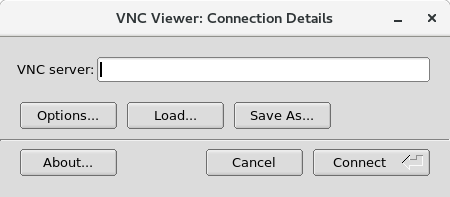
- In the "VNC server" window, enter the address "localhost:59XX"
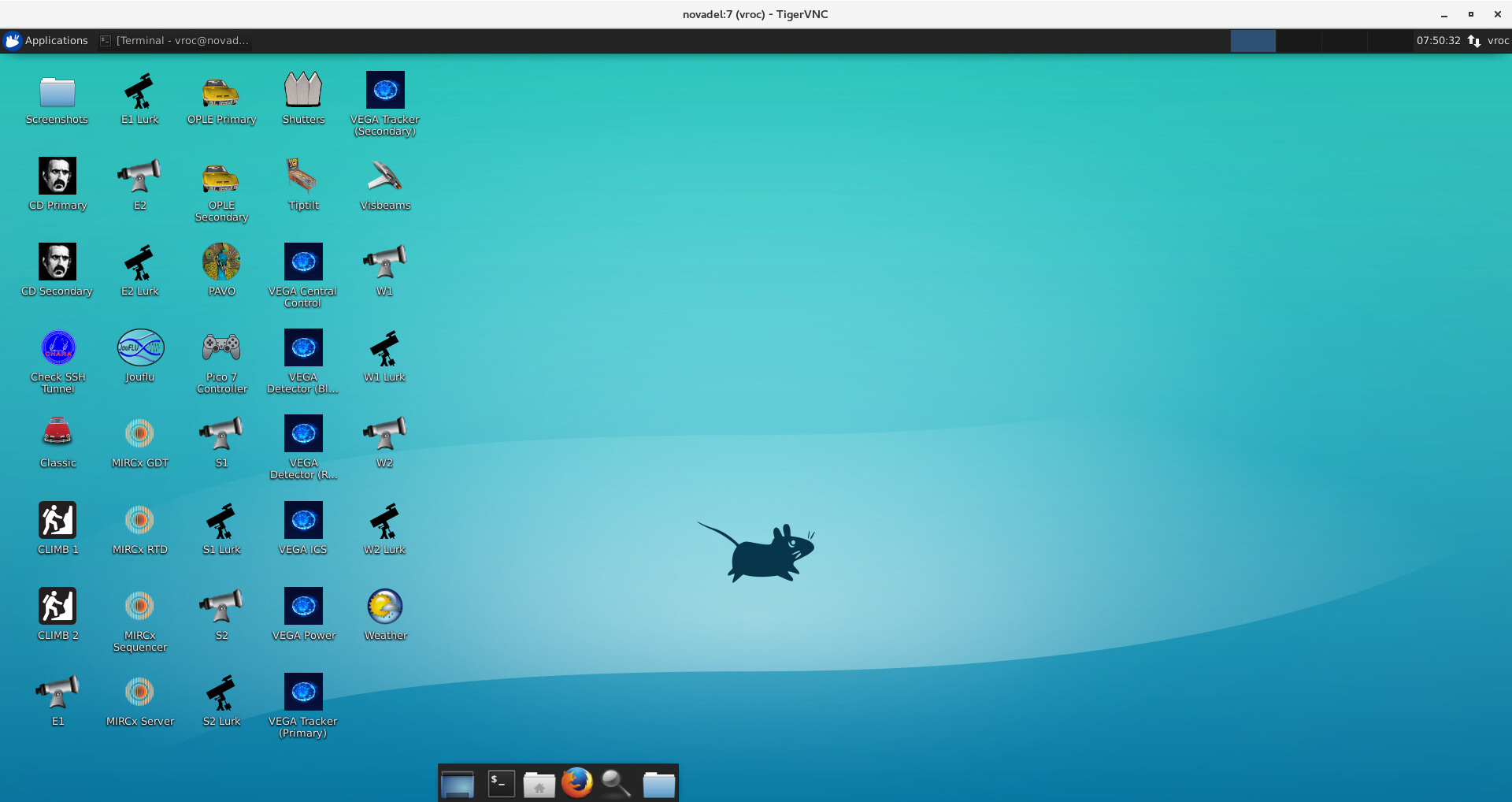
- This will have your VNC viewer to communicate with the 59XX port on your local machine, which then gets forwarded to the 59XX port on altair via SSH.
Multiple Users
- Tigervnc only allows one active viewer at a time to connect, so if you want multiple connections to the Atlanta machine, you can use the “view only” password (given upon request), but as the name suggests, that only allows you to view what the active user is doing.
- Users connecting with the view only password will also need to initiate an SSH tunnel on their local machine.
Notes on tigervnc
- The tigervnc VNC viewer can be spread out over multiple monitors and made fullscreen. Open the context menu to see more options and to exit out of fullscreen.
- In newer versions of tigervnc, the context menu is accessible with Ctrl + Alt + m. In older versions, it is accessible with the F8 key.
Connecting to the Machines on Mount Wilson
- Because the remote observing machine is not on the same network as the computers on the mountain, you will not be able to ping any mountain computer with the exception of michelson. Proxy commands have been set up for the mircx, mystic, spica, silmaril, pavo, and ople machines, so you can ssh into those directly (e.g., `ssh
This email address is being protected from spambots. You need JavaScript enabled to view it. `), but for all other computers, you must ssh into michelson first. - The following shortcuts are installed to connect quickly to various machines on the mountain: michelson, pavo, silmaril, spooler_mircx, spooler_mystic, spooler_silmaril, and sshople
Exiting the VNC viewer
When exiting the VNC viewer, please close all windows and close the VNC viewer by closing it directly or by using the "Exit viewer" command in the context window (with the F8 key or, in newer versions of tigervnc, with Ctrl+Alt+m). DO NOT log out of the account. This will kill the VNC server completely
Links for Current Conditions on Mount Wilson
Troubleshooting
Below are some potential issues that occur with the remote observing system and their solutions.
- Windows on the VNC desktop cannot be moved or resized. However, they can be opened/closed.
- Solution: Enter the command `xfwm4 --replace &`. This will refresh the desktop environment and should solve the problem.
- GUIs either don't open or open slowly, then don't show any information.
- Cause: The SSH tunnel was disconnected or otherwise not working
- Solution: Reset the SSH tunnel using either the "Connect to CHARA" button on the desktop or run the commands `kill_all_ssh_tunnels`, then `remote_ssh_command` in a terminal.
- Keyboard input is "weird" - as if the ALT key is being held down. For example, the "m" key enables move mode for the active window. Somehow the ALT key has gotten stuck. This often happens when using SHIFT and ALT at the same time.
- Solution: Hold down the SHIFT and ALT key at the same time. Lift the ALT key first, then lift the Shift key.
- The screen is totally black when connecting to the VNC server. This happens when a user attempts to log out of the vroc account.
- Solution: Restart the VNC server (i.e., contact Jeremy).
- MIRC-X guis running very slowly, but everything on the desktop (moving windows, typing in terminal, etc.) responds normally.
- Solution: Check that you have opened the guis on the VNC machine and not the mircx machine. One way to test this is to close the guis and reopen them using the desktop icons or open a new terminal and run `mircx_launch_all_guis`.
- Lag - lag in the remote observing machine can be caused by multiple problems. Here are tests you can run:
- If moving windows around on the virtual desktop is laggy, it could be your network connection to the CHARA server in Atlanta that is the issue. You can test this by running a speed test. We don't have a specific speed requirement, but speeds over ~100 Mbps should be okay.
- If you can move windows around without issue, but guis are slow to respond this could be one of two problems - network issues between Atlanta and Mt. Wilson or high resource usage on altair.
- To check network usage on altair, run "vnstat -h" to see how much data is received and transmitted each hour in the last 24 hours.
- To check CPU and memory usage on altair, run "htop" - this will allow you to see if there are any processes using a larger than normal amount of resources, causing lag.
- If the on site Array operator is also experiencing lag, then the problem is on the Mt. Wilson network.
Questions
Please direct any questions to CHARA Data Scientist Jeremy Jones (